To uninstall Jcode installed with the official shell installer, use its separate uninstall script. Standard removal keeps your saved setup; --purge also deletes the Jcode data directory. Preview the paths with --dry-run before choosing.
brew uninstall jcode. The shell uninstaller does not remove the Homebrew Cellar copy. Jcode 0.90.0 has no jcode uninstall subcommand.1. Check which Jcode you are running
In macOS, Linux or WSL, run these read-only checks. type -a reveals duplicate installations, while command -v shows the one your shell currently selects.
jcode --version
command -v jcode
type -a jcode
On our Mac, the active path was /opt/homebrew/bin/jcode, pointing into Cellar/jcode/0.90.0. Its version reported v0.90.0-dev (unknown). The separately reinstalled official release reported v0.90.0 (a7f005e8c). Matching version numbers do not establish identical builds.
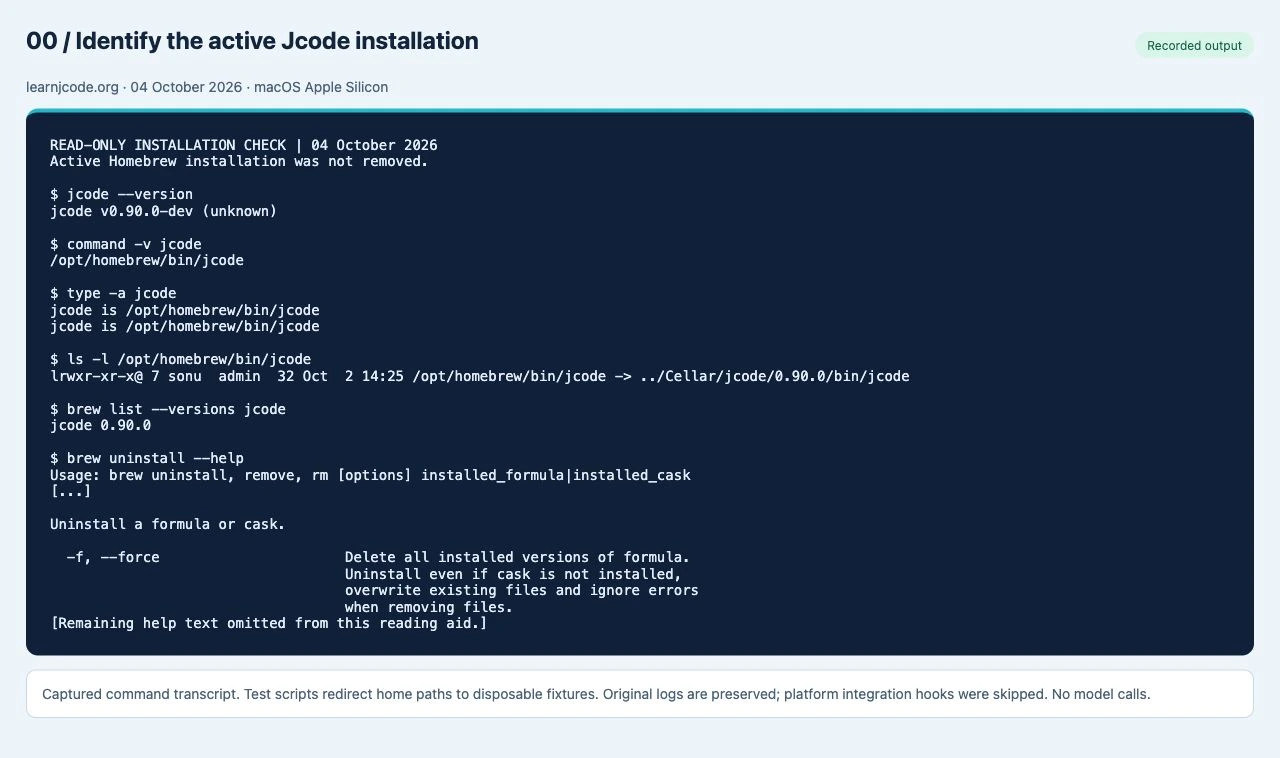
Read the recorded command output
READ-ONLY INSTALLATION CHECK | 04 October 2026
Active Homebrew installation was not removed.

$ jcode --version
jcode v0.90.0-dev (unknown)

$ command -v jcode
/opt/homebrew/bin/jcode

$ type -a jcode
jcode is /opt/homebrew/bin/jcode
jcode is /opt/homebrew/bin/jcode

$ ls -l /opt/homebrew/bin/jcode
lrwxr-xr-x@ 7 sonu  admin  32 Oct  2 14:25 /opt/homebrew/bin/jcode -> ../Cellar/jcode/0.90.0/bin/jcode

$ brew list --versions jcode
jcode 0.90.0

$ brew uninstall --help
Usage: brew uninstall, remove, rm [options] installed_formula|installed_cask
[...]

Uninstall a formula or cask.

  -f, --force                      Delete all installed versions of formula.
                                   Uninstall even if cask is not installed,
                                   overwrite existing files and ignore errors
                                   when removing files.
[Remaining help text omitted from this reading aid.]
If you installed with Homebrew
Confirm the formula and remove it through the same package manager:
brew list --versions jcode
brew uninstall jcode
hash -r
type -a jcode
If another Jcode path appears afterward, you have a second installation. Handle that copy separately. We checked the installed Homebrew path and Homebrew’s uninstall help, but did not remove the user’s active Homebrew installation.
If you used the official installer or source launcher
The default Unix launcher is ~/.local/bin/jcode; installed build channels are under ~/.jcode/builds. Close Jcode clients and finish active work before removal. The official script also attempts to stop matching jcode serve processes.
If you need a recovery copy before purging, store it outside ~/.jcode. This example creates a dated backup and does not remove anything:
backup="$HOME/jcode-backup-$(date +%Y%m%d-%H%M%S)"
mkdir -m 700 "$backup"
cp -R "$HOME/.jcode" "$backup/"
The backup includes whatever secrets are stored inside that directory. Keep it private. This backup command is a reader instruction; it was not run against the user’s real data.
Use the release and build verification steps if you need to identify a stable release or a development build before replacing it.
2. Download the official script and preview removal
Save the script locally so you can inspect it and reuse the same downloaded file for the preview and removal.
curl -fsSL https://raw.githubusercontent.com/1jehuang/jcode/master/scripts/uninstall.sh -o uninstall-jcode.sh
less uninstall-jcode.sh
bash uninstall-jcode.sh --dry-run
bash uninstall-jcode.sh --purge --dry-run
The purge preview lists the launcher, build directory and entire Jcode data directory. The final line should say Dry run: nothing was deleted. In our disposable test, the launcher and user-data fixtures still existed afterward.
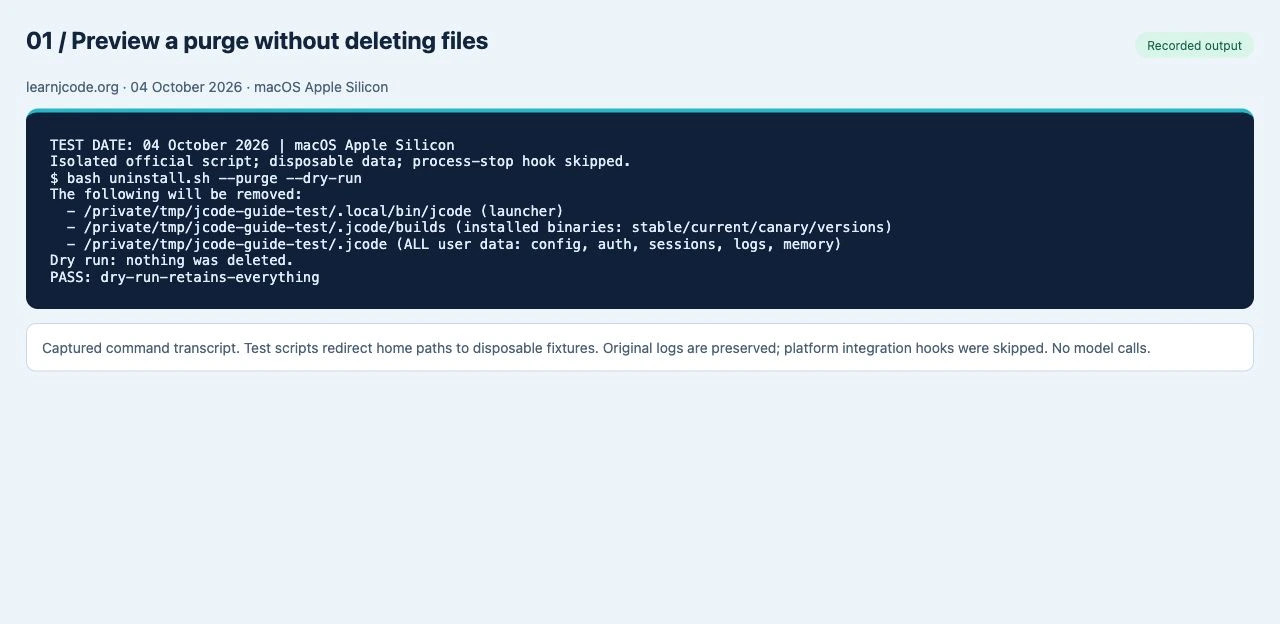
Read the recorded command output
TEST DATE: 04 October 2026 | macOS Apple Silicon
Isolated official script; disposable data; process-stop hook skipped.
$ bash uninstall.sh --purge --dry-run
The following will be removed:
  - /private/tmp/jcode-guide-test/.local/bin/jcode (launcher)
  - /private/tmp/jcode-guide-test/.jcode/builds (installed binaries: stable/current/canary/versions)
  - /private/tmp/jcode-guide-test/.jcode (ALL user data: config, auth, sessions, logs, memory)
Dry run: nothing was deleted.
PASS: dry-run-retains-everything
JCODE_INSTALL_DIR, pass the same directory to the removal script: JCODE_INSTALL_DIR="/your/custom/bin" bash uninstall-jcode.sh --dry-run. The reviewed Unix uninstaller derives its data path from ~/.jcode; it does not use JCODE_HOME to find a custom data directory. Read the preview instead of assuming every copy will be found.3. Standard uninstall: remove binaries, keep your setup
After reviewing the preview, run:
bash uninstall-jcode.sh --yes--yes skips the confirmation prompt. Without it, an interactive terminal asks for confirmation; a noninteractive invocation refuses to proceed. Our test removed the launcher and build store, then checked that configuration, a dummy auth file, sessions, logs and memory fixtures remained.
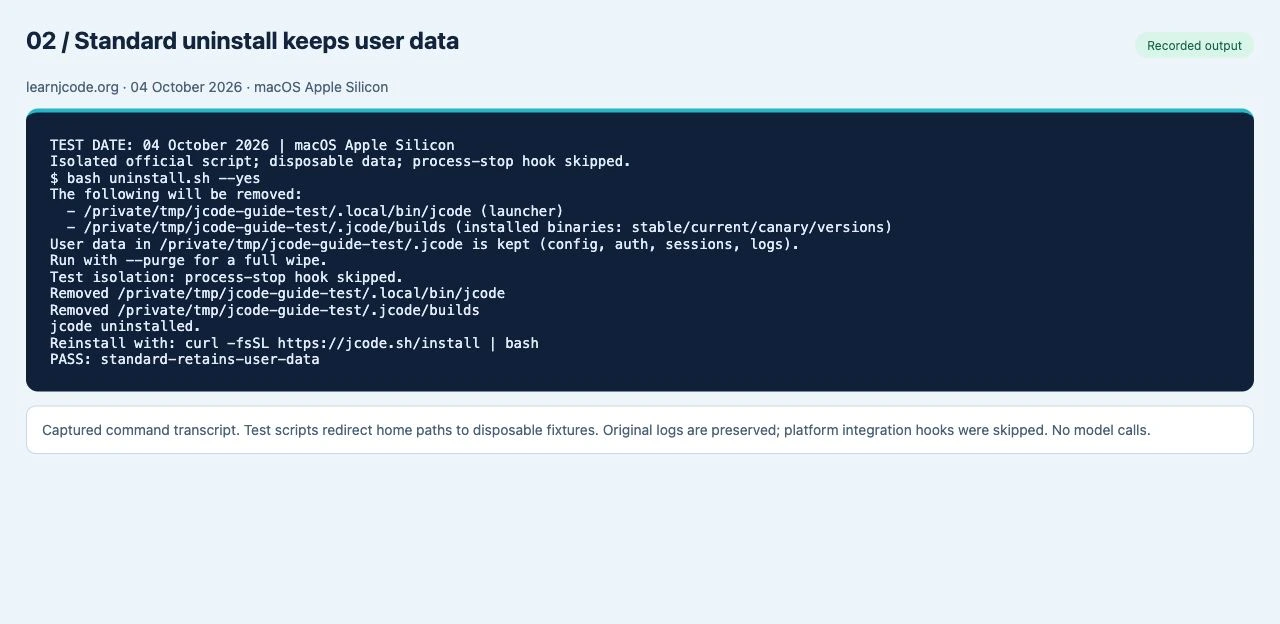
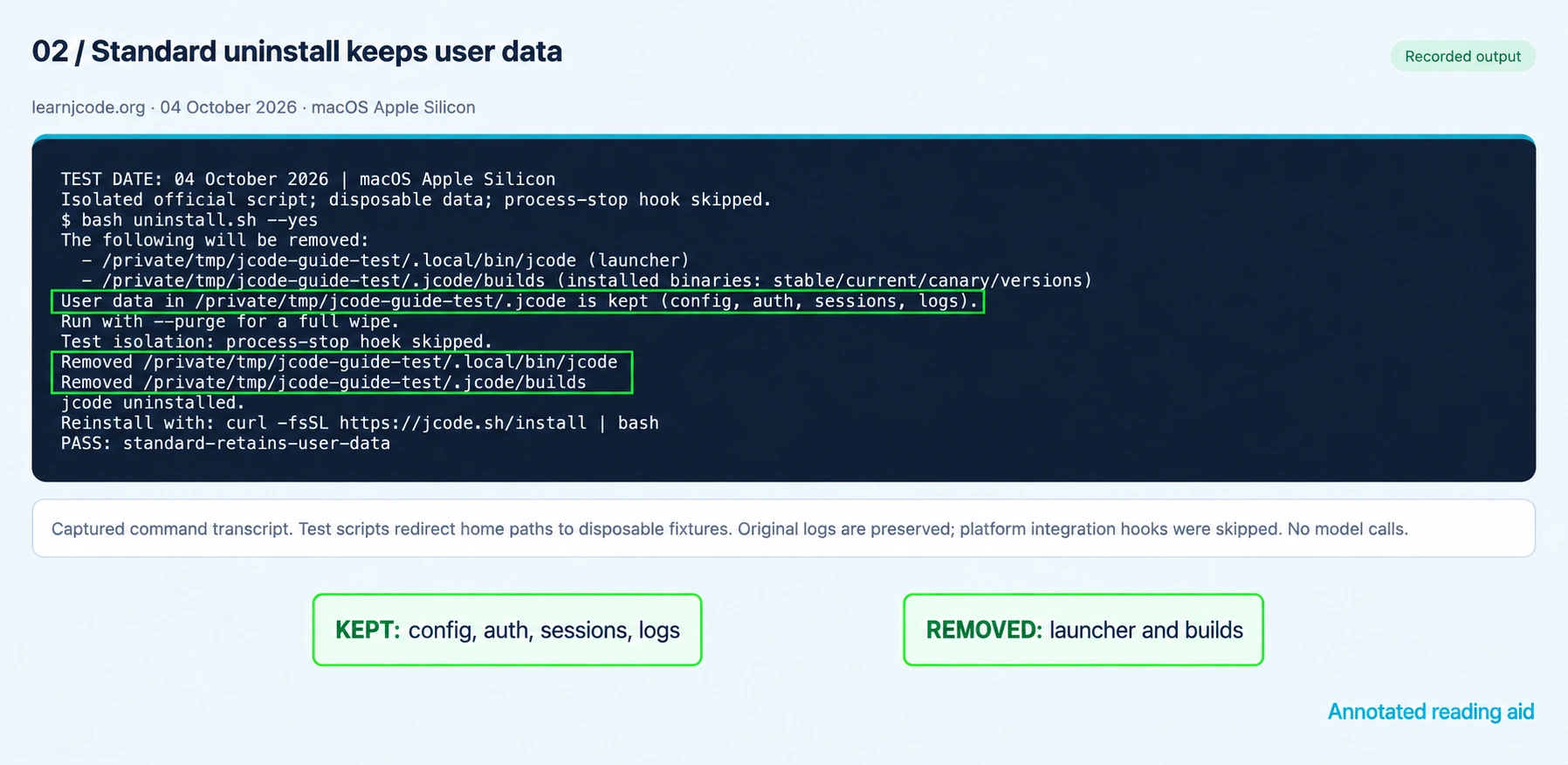
Read the recorded command output
TEST DATE: 04 October 2026 | macOS Apple Silicon
Isolated official script; disposable data; process-stop hook skipped.
$ bash uninstall.sh --yes
The following will be removed:
  - /private/tmp/jcode-guide-test/.local/bin/jcode (launcher)
  - /private/tmp/jcode-guide-test/.jcode/builds (installed binaries: stable/current/canary/versions)
User data in /private/tmp/jcode-guide-test/.jcode is kept (config, auth, sessions, logs).
Run with --purge for a full wipe.
Test isolation: process-stop hook skipped.
Removed /private/tmp/jcode-guide-test/.local/bin/jcode
Removed /private/tmp/jcode-guide-test/.jcode/builds
jcode uninstalled.
Reinstall with: curl -fsSL https://jcode.sh/install | bash
PASS: standard-retains-user-data
What is retained, and what is removed?
| Location or item | Standard removal | With --purge |
|---|---|---|
| Default launcher and ~/.jcode/builds | Removed | Removed |
| Config, auth, sessions, logs and memory inside ~/.jcode | Kept | Removed with the directory |
| Recognized macOS CLI launcher bundles and notification helper | Removed when found | Removed when found |
| Homebrew Cellar installation | Not removed by this script | Not removed by this script |
| Project source files and project-local configuration outside ~/.jcode | Kept | Kept |
| Provider files outside ~/.jcode, such as ~/.config/jcode files | Kept | Kept |
| Shell startup PATH lines and integrations not explicitly targeted | Not comprehensively cleaned | Not comprehensively cleaned |
File-retention tests covered the launcher, build directory, user-data fixtures, an external configuration fixture and a project file. Bundle and integration behavior was checked in the script source.
4. Purge: delete the Jcode data directory too
~/.jcode. Choose it only after reviewing the purge preview and deciding which sessions, settings or credentials you need to back up.bash uninstall-jcode.sh --purge --dry-run
bash uninstall-jcode.sh --purge --yesIn the purge test, both the launcher and .jcode directory disappeared. Our project file and external configuration fixture remained. A purge is therefore not a complete provider-account logout or credential revocation: it does not remove secrets held elsewhere, shell environment variables, another coding tool’s credentials, or provider-side access.
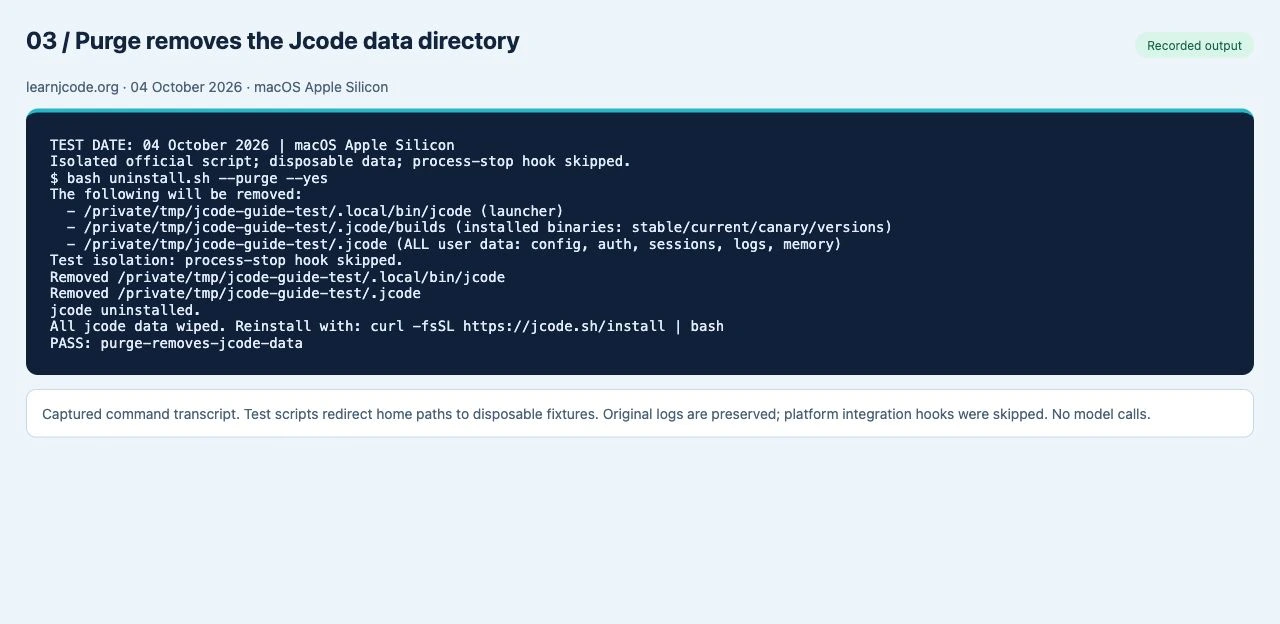
Read the recorded command output
TEST DATE: 04 October 2026 | macOS Apple Silicon
Isolated official script; disposable data; process-stop hook skipped.
$ bash uninstall.sh --purge --yes
The following will be removed:
  - /private/tmp/jcode-guide-test/.local/bin/jcode (launcher)
  - /private/tmp/jcode-guide-test/.jcode/builds (installed binaries: stable/current/canary/versions)
  - /private/tmp/jcode-guide-test/.jcode (ALL user data: config, auth, sessions, logs, memory)
Test isolation: process-stop hook skipped.
Removed /private/tmp/jcode-guide-test/.local/bin/jcode
Removed /private/tmp/jcode-guide-test/.jcode
jcode uninstalled.
All jcode data wiped. Reinstall with: curl -fsSL https://jcode.sh/install | bash
PASS: purge-removes-jcode-data
On macOS, the script targets CLI-generated app bundles with recognized bundle identifiers. Its source explicitly distinguishes these from the separate Jcode Desktop app. Do not interpret CLI uninstall as a Desktop uninstall.
5. Reinstall and check the selected executable
For the official macOS or Linux installer path:
curl -fsSL https://jcode.sh/install -o install-jcode.sh
less install-jcode.sh
bash install-jcode.sh
hash -r
command -v jcode
jcode --version
Our isolated reinstall downloaded the Apple Silicon release, verified its SHA-256, restored the executable and preserved the saved-session fixture left by standard removal. That checks the files and executable; it does not prove a live provider login or model session.
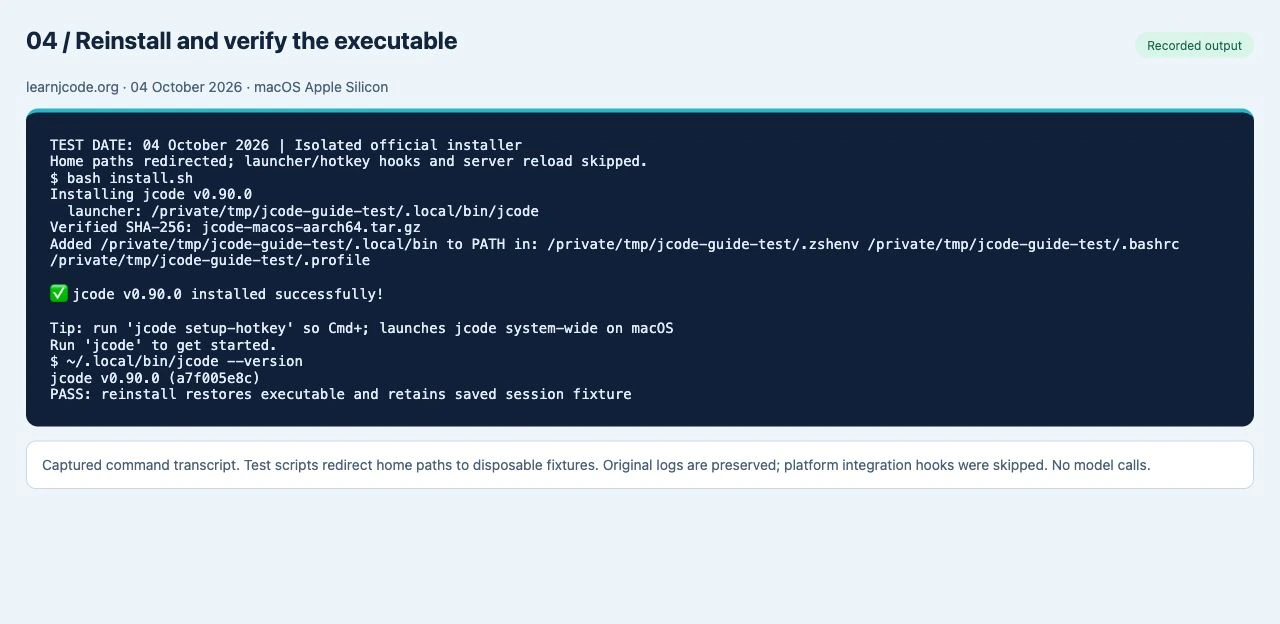
v0.90.0 (a7f005e8c) and a retained session fixture.Read the recorded command output
TEST DATE: 04 October 2026 | Isolated official installer
Home paths redirected; launcher/hotkey hooks and server reload skipped.
$ bash install.sh
Installing jcode v0.90.0
  launcher: /private/tmp/jcode-guide-test/.local/bin/jcode
Verified SHA-256: jcode-macos-aarch64.tar.gz
Added /private/tmp/jcode-guide-test/.local/bin to PATH in: /private/tmp/jcode-guide-test/.zshenv /private/tmp/jcode-guide-test/.bashrc /private/tmp/jcode-guide-test/.profile

✅ jcode v0.90.0 installed successfully!

Tip: run 'jcode setup-hotkey' so Cmd+; launches jcode system-wide on macOS
Run 'jcode' to get started.
$ ~/.local/bin/jcode --version
jcode v0.90.0 (a7f005e8c)
PASS: reinstall restores executable and retains saved session fixture
For Homebrew, reinstall through Homebrew:
brew tap 1jehuang/jcode
brew install jcode
hash -r
jcode --version
After a standard removal, Jcode’s retained data can be reused. Follow the first-session walkthrough to launch a project and check provider access again. After a purge, open Jcode and reconnect your chosen provider if needed. If credentials still work after purge, check for credential sources outside ~/.jcode.
Once the executable launches, use the command and shortcut reference to confirm the session controls available in your build.
If Jcode still appears installed
- Run
type -a jcodeand check each path: a Homebrew copy can coexist with a shell-installer copy. - Start a new terminal or run
hash -rto refresh a cached command path. - If the script says there is nothing to uninstall, compare your actual launcher path with its default and any
JCODE_INSTALL_DIRoverride. - If retained settings cause the same problem after reinstall, back them up before trying purge. Reinstalling binaries does not reset configuration.
Windows and WSL
The recorded tests here are macOS tests. In WSL, the Bash commands apply to the Linux installation inside that distribution. In Git Bash on native Windows, the script selects %LOCALAPPDATA%/jcode and a jcode.exe launcher, and attempts to remove its launcher directory from the persisted user PATH. We reviewed that branch but did not execute it. Do not paste Bash syntax into PowerShell or assume a WSL uninstall also removes a native Windows copy. Consult the official Windows notes for your installation.
Test scope, versions and official sources
Tests ran on 04 October 2026 with disposable files seeded from the installed Jcode executable. We adapted only home-path references to a test root and skipped the script’s process-stop hook. For reinstall, we also skipped launcher/hotkey setup and server reload. Download, checksum verification, binary installation, file removal and retention checks ran. Linux, native Windows, live authentication and a full source compilation were not tested.
No model requests were made. Screenshots show captured transcripts of real command output; the AI-annotated image is an explanatory reading aid, with original output preserved separately.
- Uninstall source at the checked revision
- Official uninstall instructions
- Official shell installer
- Release tested: v0.90.0
Script fingerprint for this test
Uninstaller SHA-256:
75a12db9965231755f1d13e629af3358793b08a8d273aa2a54c7313ad5a7e096Installer SHA-256:
b035c2634dcd78796ad0f33fd15a1686255ea192c2dcb20a8c54bf6a7ab7b3b0For platform-specific prerequisites and alternative install methods, return to the Jcode installation guide.