Install Jcode Desktop on macOS with the steps below. Download, installation and first launch were checked; session startup remained pending on this Mac.
17 October 2026 · Desktop 0.6.3 · macOS 26.6.2, Apple Silicon (arm64). Windows, Linux and Intel Mac behavior: source-verified only.
1. Download Jcode Desktop
Open the official Desktop download page and select Download .dmg. The universal installer supports Apple Silicon and Intel, on macOS 13 or newer.
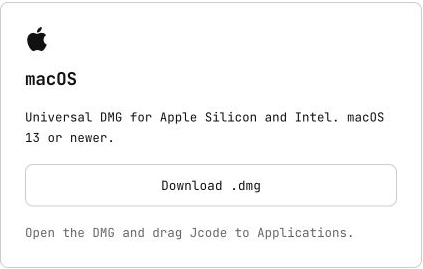
The browser saved Jcode-macOS-universal.dmg in Downloads. Its checksum matched the official release manifest.
2. Install the app
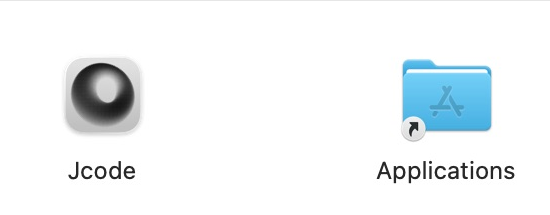
Open the DMG and drag Jcode to Applications.
3. Open Jcode and finish onboarding
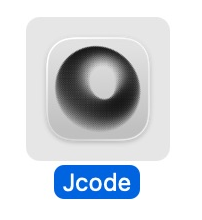
Open Applications → Jcode. Review the detected provider logins, then choose Finish onboarding. A detected login is not proof that a model request will succeed.
For a new provider, follow the provider setup guide. Model access and billing depend on the account you connect.
4. Open a session and wait for a connection
Use the + control for a new panel. Once connected, choose a model and start with a small request such as “Explain this folder. Do not change files.”


Observed limit: new-session requests did not complete during this check. The local log reported a refused harness connection. No successful coding response, model switch or session resumption is claimed.
5. Review several conversations visually
- Keep conversations side by side.
- Read rendered diffs and Mermaid diagrams inside the transcript.
- The official shortcut reference uses Super; use Command on macOS. The download page documents Super+N for a new session and Super+O for the overview.
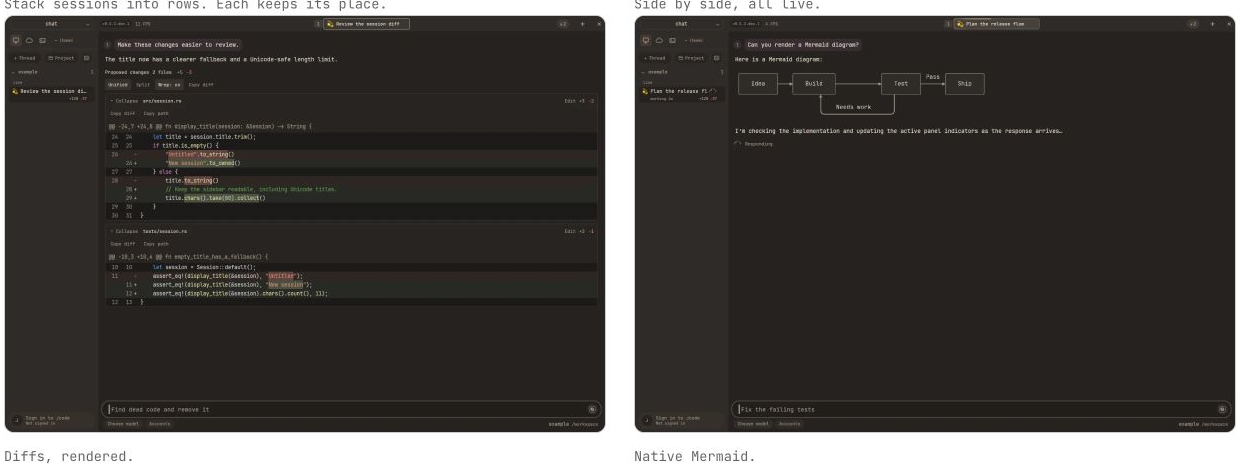
6. Return to an existing session
Use Show past sessions in the workspace. For a separate session-browser window, the official Desktop guide documents --resume:
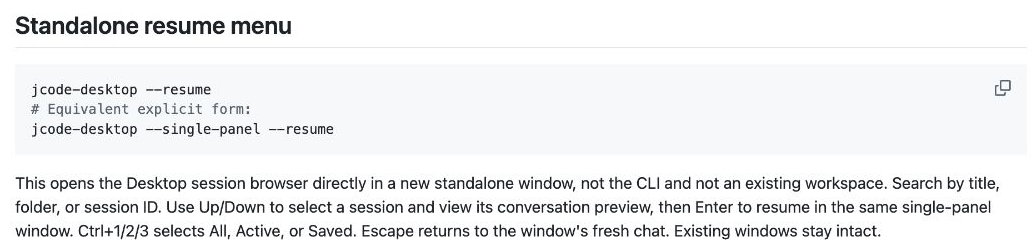
/Applications/Jcode.app/Contents/MacOS/jcode-desktop --resumeClosing a panel, closing the Mac window and fully quitting are different actions. Workspace restoration is documented upstream; successful restoration was not verified in this run.
Desktop or CLI?
| Need | Choose |
|---|---|
| Visual panels, diffs and diagrams | Desktop |
| Terminal work, SSH or scripts | CLI |
| Install Desktop without Homebrew | The app bundles its runtime |
The app’s version and the runtime version differ. This command was run on the Mac:
/Applications/Jcode.app/Contents/MacOS/jcode --version
# Recorded output: jcode v0.98.1-dev (217c196)
The separately installed terminal command can be a different build. Use the CLI installation guide for that route.
Windows and Linux downloads
Source-verified; not run here. Select the package matching your machine on the official platform page.
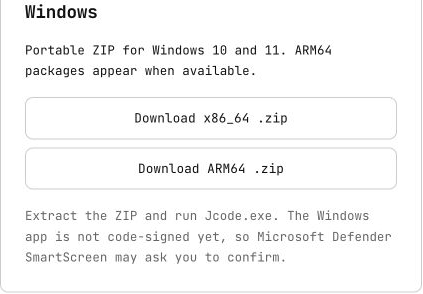
- Windows: extract the ZIP and run
Jcode.exe. The page lists Windows 10/11 and says the app is not code-signed yet; SmartScreen may prompt.
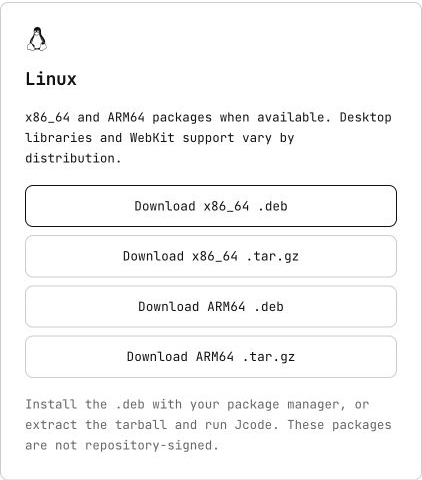
- Linux: install the matching .deb with your package manager, or extract the tarball and run Jcode. Desktop libraries and WebKit support vary by distribution. Packages are not repository-signed.
Verification details
- Desktop 0.6.3, downloaded from jcode.sh on 17 October 2026; installed in
/Applications/Jcode.app. - DMG SHA-256:
77fd6b19833cade8babc4e891c6ac4f9dc96998b0225cc6481bc6eb2efd1e7e7, matching the release manifest. - Bundle identifies macOS 13.0 minimum; universal arm64/x86_64 executables; stapled notarization ticket observed.
- Hands-on scope: download, checksum, installation, app launch and bundled CLI version. Session creation was attempted but remained pending.
- Private account details and unrelated history are excluded from published crops. Small arrows sit outside the unchanged screenshot pixels. Tap an image to enlarge it.
Next: Jcode basics · Connect a provider · Android / Termux guide · Report a Desktop issue