Run Jcode’s terminal app on Android through Termux. Install glibc and patchelf before Jcode.
Source-verified, 17 October 2026. No Android device was used. Screenshots show official instructions, not device results.
1. Download and install Termux
Use Termux on F-Droid or official GitHub releases. Install and open Termux; let its initial setup finish.

- Full package support requires Android 7 or newer.
- Keep Termux and its plugins from the same source; their signatures must match.
- The Play Store build is a separate experimental branch. This guide follows the F-Droid/GitHub route.
2. Check the phone’s architecture
termux-info
getprop ro.product.model
getprop ro.build.version.release
uname -m
dpkg --print-architecture
Save these outputs with jcode --version after installation. Stop if the architecture is armv7l or i686; the checked installer has no matching download.
3. Install glibc and patchelf

pkg update
pkg upgrade
pkg install curl git patchelf
pkg install glibc-repo
pkg update
pkg install glibc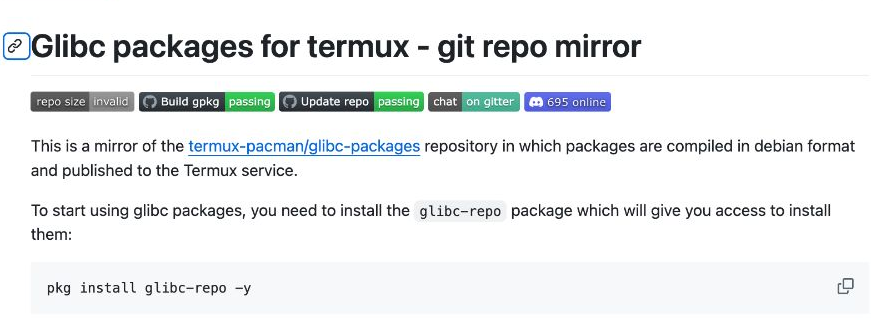
Review the package prompts. If glibc cannot be found, fix the repository setup before continuing.
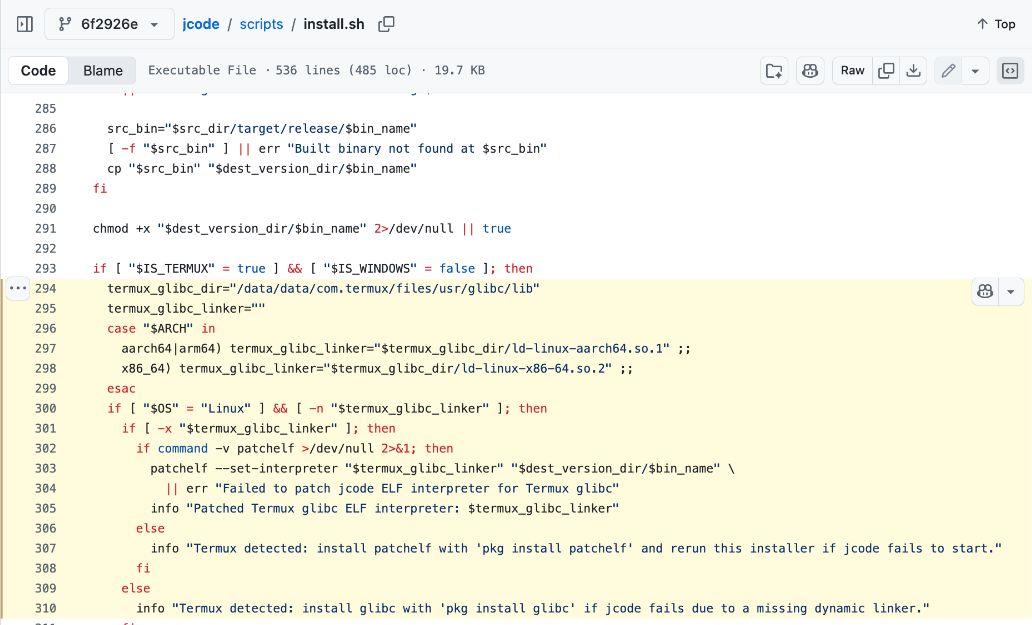
4. Check the glibc loader path
command -v patchelf
dpkg-query -W glibc patchelf
# aarch64 / arm64:
ls -l "$PREFIX/glibc/lib/ld-linux-aarch64.so.1"
# x86_64 instead:
ls -l "$PREFIX/glibc/lib/ld-linux-x86-64.so.2"
Run the ls line matching your architecture. The checked installer expects the standard prefix /data/data/com.termux/files/usr; a renamed or relocated Termux environment may not match it.
5. Download and run the Jcode installer

curl -fsSL https://jcode.sh/install -o jcode-install.sh
less jcode-install.sh
# Press q to leave less, then run:
bash jcode-install.sh
Downloading first lets you inspect the script. The checked source selects the architecture, checks the release checksum, then patches the downloaded binary for Termux.
6. Check the launcher and version
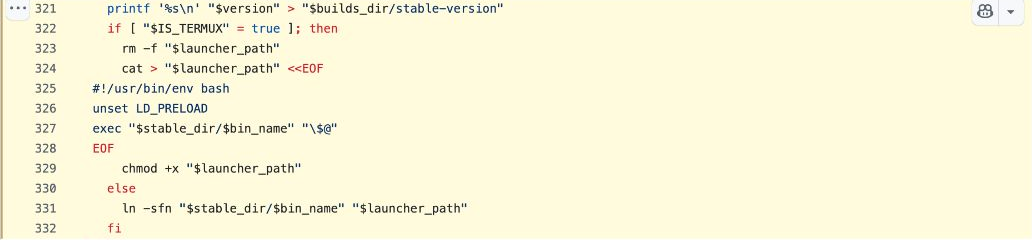
export PATH="$HOME/.local/bin:$PATH"
command -v jcode
sed -n '1,4p' "$HOME/.local/bin/jcode"
patchelf --print-interpreter "$HOME/.jcode/builds/stable/jcode"
jcode --version
With default install paths, the wrapper should contain unset LD_PRELOAD. The interpreter should match step 4. Run jcode through its launcher rather than calling the underlying ELF binary directly.
7. Connect a provider and open a project
mkdir -p ~/projects/jcode-start
cd ~/projects/jcode-start
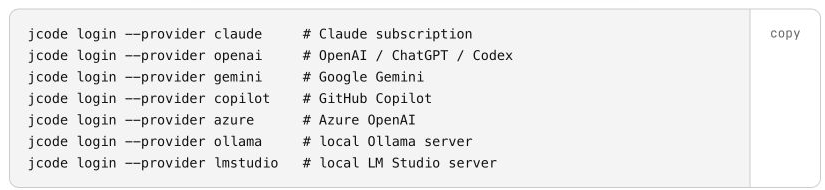
jcode login
jcode
Start with “Explain this folder. Do not change files.” Keep the project inside Termux’s home directory. See provider setup for account options. Android localhost is the phone, so it will not reach an Ollama server on your PC automatically.
8. Resume a saved conversation
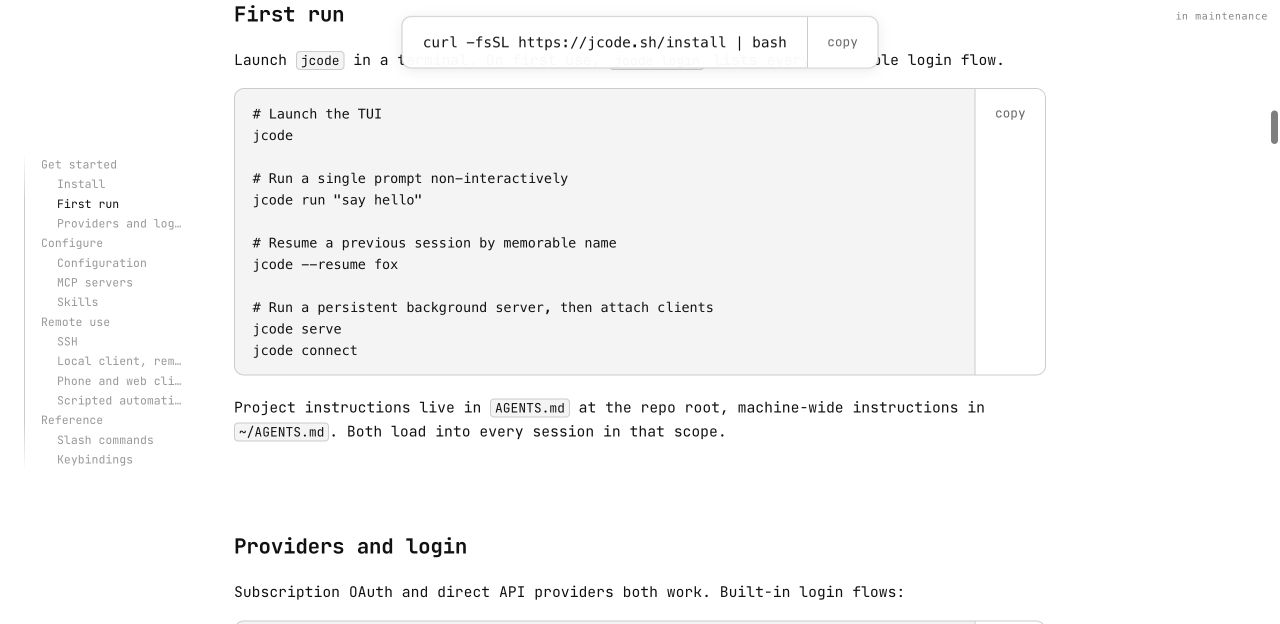
jcode --resume
# Or, inside Jcode:
/resume
Saved history and a running background request are different. Android can stop Termux processes; the Termux project documents Android 12+ process limits. No background-survival result is claimed here.
If Jcode will not start
- Command not found: check
~/.local/binis on PATH. - Required file not found: confirm the matching glibc loader exists, then rerun the installer.
- Interpreter is wrong: confirm patchelf is installed, then rerun the installer.
- libtermux-exec / preload error: inspect the wrapper for
unset LD_PRELOADand use that wrapper. - Signal 9: investigate Android process or memory limits before reinstalling Jcode.
Versions and verification scope
- Jcode stable release checked: v0.98.1, published 15 October 2026. This is a source reference, not a version installed on Android.
- Installer reviewed at commit 6f2926e. The live installer can change.
- Termux README lists v0.118.3. No installed Termux version, device model, Android build or runtime outcome is available.
- No APK-installation, provider-response or session-resume success is claimed. All screenshot pixels come from real browser captures; arrows sit outside the images.
Related: Mac / Linux / Windows installation · Desktop app guide · First Jcode session · Common errors